
Browser & crates
The Universal Browser is the app's library view — find a track, load it, get back to the decks. On a Mac or iPad it can also sit docked under the decks in the DVS view, which is the fastest way to work: search and load without an overlay ever covering the platters.
The columns
TITLE · ARTIST · BPM · KEY · STEMS · GRID · GENRE · YEAR · TIME
Tap a header to sort, tap it again to flip. Drag a boundary between two headers to resize a column — your widths are remembered.
Three of them are worth explaining:
| Column | Says |
|---|---|
| STEMS | This track has separated stems, and which kind: HQ, Q or IMP |
| GRID | This file has a beat grid. It never says where the grid came from — an imported grid is our grid the moment we read it |
| YEAR | Read from the file's own tags |
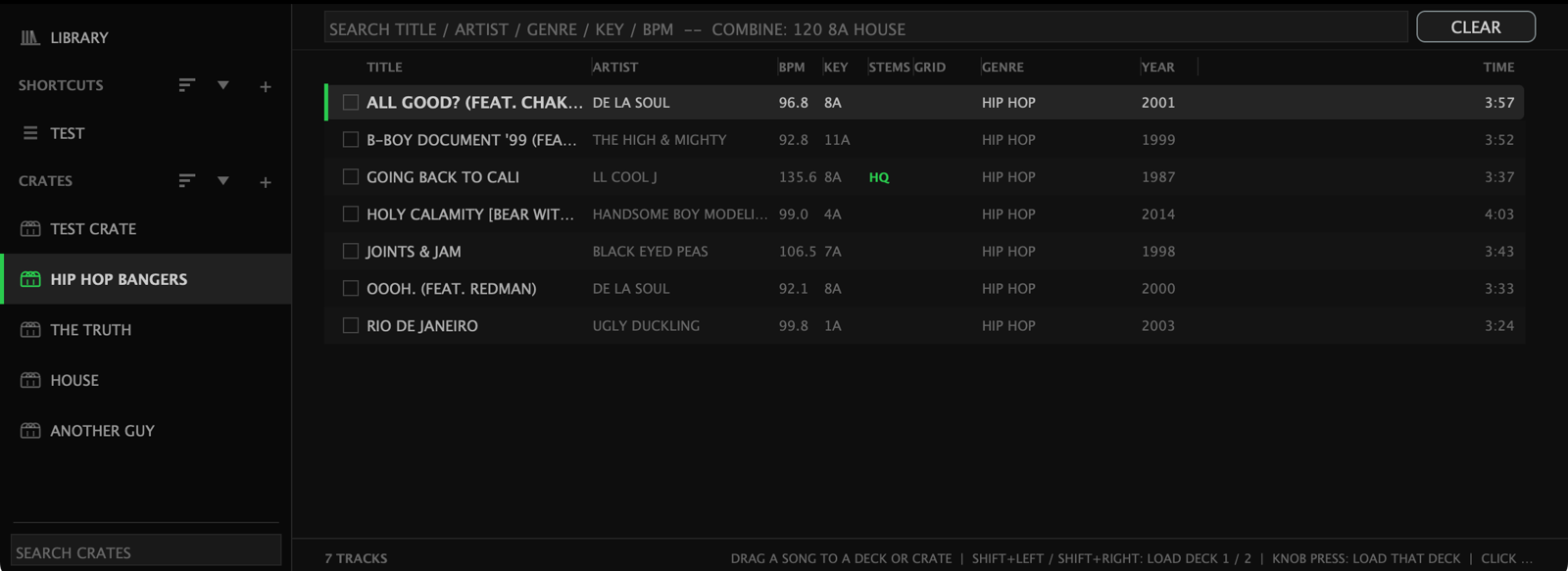
The Search box matches title, artist, genre, key, BPM and filename as
you type, and terms combine — 120 8A house finds house tracks near
120 BPM in 8A.
Match highlighting
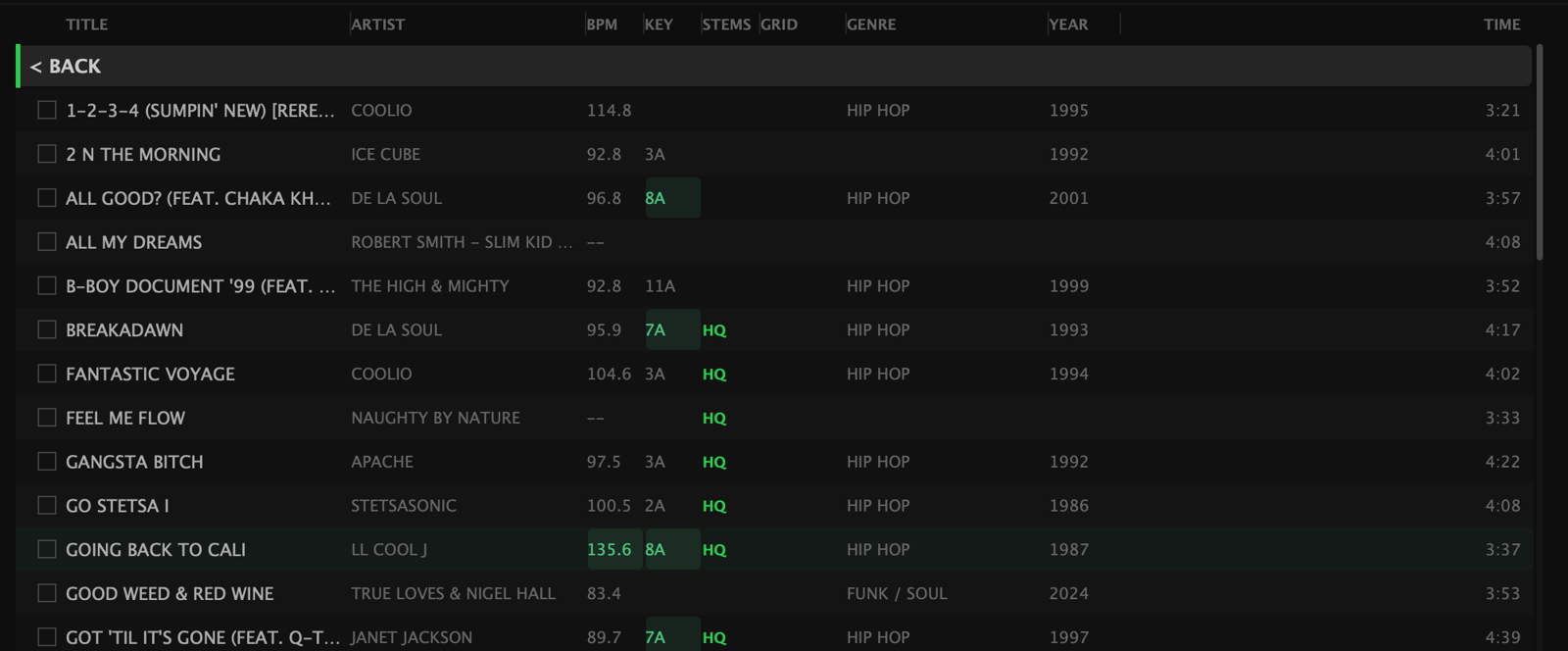
With a track loaded, the browser highlights what mixes: BPM values within ±6% (including half- and double-time) and Camelot-compatible keys turn green. Scan the green and you know what works next.
The sidebar
Down the left, under fixed titles:
- LIBRARY — your whole music folder, browsable as folders
- SEARCH — search results
- SHORTCUTS (with a +) — pinned jumping-off points. A shortcut can hold crates and library folders together
- CRATES (with a +) — your own crates
The two lists scroll independently, and each has its own sort menu: DATE ADDED · A–Z · DATE EDITED · LAST USED · MOST USED, with a triangle for direction. PIN TO TOP keeps a crate where you can reach it.
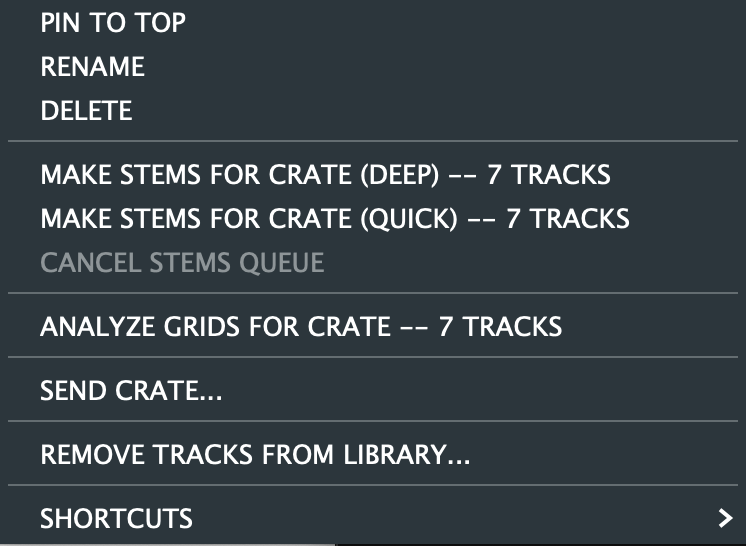
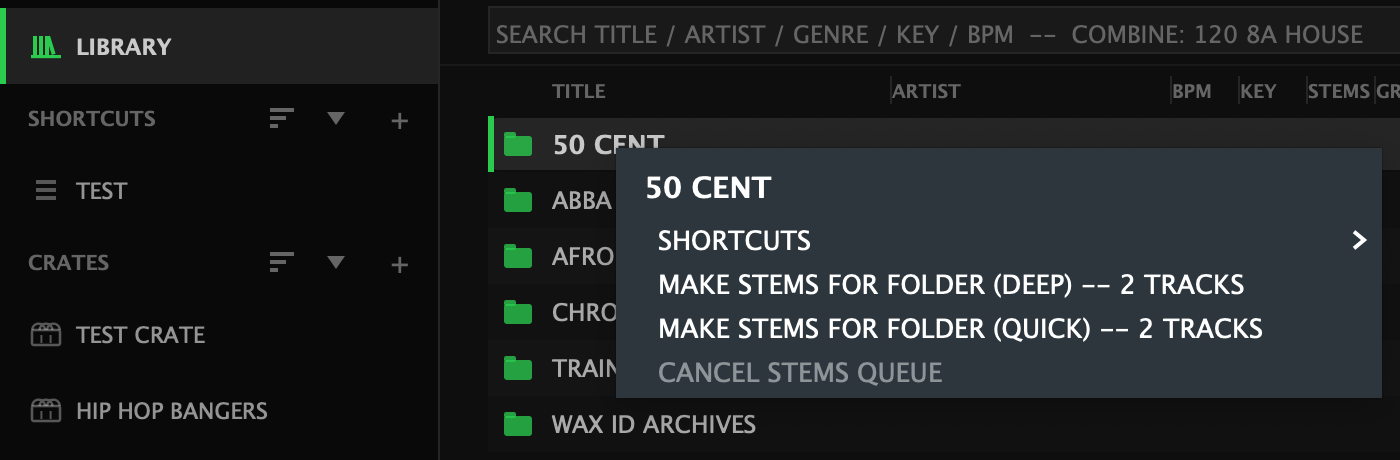
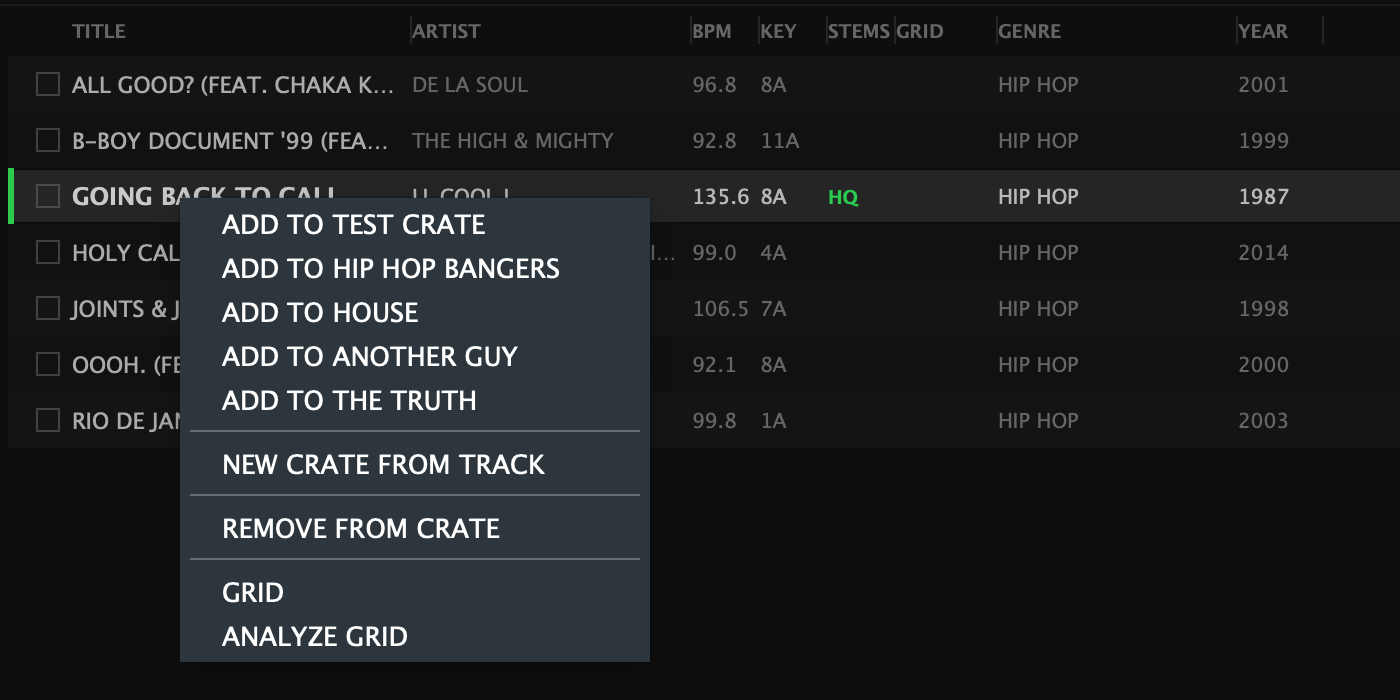
Right-click (or, on the iPad, long-press) is where the rest lives: right-click a track to copy it into a crate or start a new one; right-click a crate to rename, delete, sort, send or export it; right-click a library folder to make a shortcut of it.
A track's right-click menu also opens the grid: GRID / EDIT GRID, RE-ANALYZE GRID, or ANALYZE a whole selection at once.
Selecting more than one
There's a checkbox at the left of every track row — tap it to add that row to the selection. It exists because the iPad has no shift or cmd key, and it works the same way on every device.
Loading a track
| From | How |
|---|---|
| On screen | Double-click a track, or arrow keys + Enter. In the docked browser there is no target deck, so use Shift + Left / Shift + Right to load deck 1 / 2, or drag |
| By dragging | Drag a row onto a platter, onto a waveform lane, or onto a crate in the sidebar |
| Hardware | Turn the browse encoder to navigate, press to load (or enter a folder); hold shift while turning for fast page jumps |
| Keyboard | ⌘F opens the browser's search for deck 1, ⌘G for deck 2 |
| The decks | Long-press the platter centre on a DVS deck |
Scroll with the wheel or the trackpad as well as the knob and the arrows.
With DVS active, loading hands the track to Quick Load, so it plays under your control vinyl immediately. Dropping a track on an analog deck that is on air is refused, with a red banner saying why — the app will not cut a playing record out from under you.
Sample and loop modes
The same browser doubles as the Sampler's and Loop Player's gateway: opened from a pad it roots itself at the right folder (SAMPLE BROWSER, LOOP BROWSER) and adds pinned rows — RECORD NEW SAMPLE / RECORD NEW LOOP, straight into sample capture, and EDIT PAD SAMPLE / EDIT PAD LOOP.
Preferences
Settings → Customize has an Auto-Hide Track Browser option — the browser dismisses itself after you load, putting you straight back on the decks. It does not apply while the browser is docked.
See also
- Crate transfer — sending a crate to another device
- Stems — what HQ, Q and IMP mean