
Views and the eye
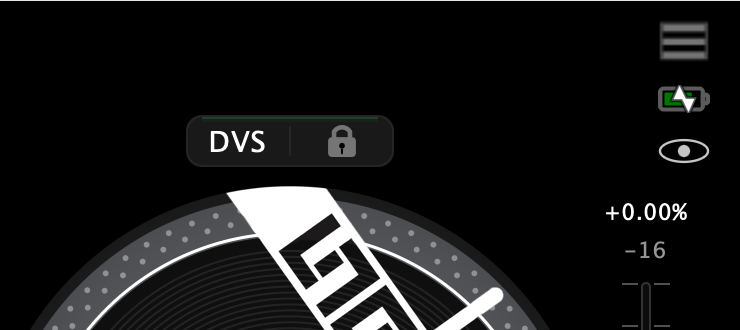
The main screen isn't one fixed layout. It's a view, and the app ships several — each one spends the screen on something different.
⚡ Tap the eye in the top-right corner to cycle views. On a Mac, TAB does the same thing.
The views you get
Which views exist depends on the screen you're on — Mix and Pads were designed for a phone, and bigger screens get their own instead.
| Device | Views |
|---|---|
| iPhone | Full → Mix → Pads |
| iPad | Full → DVS |
| Mac | Full → DVS |
Full
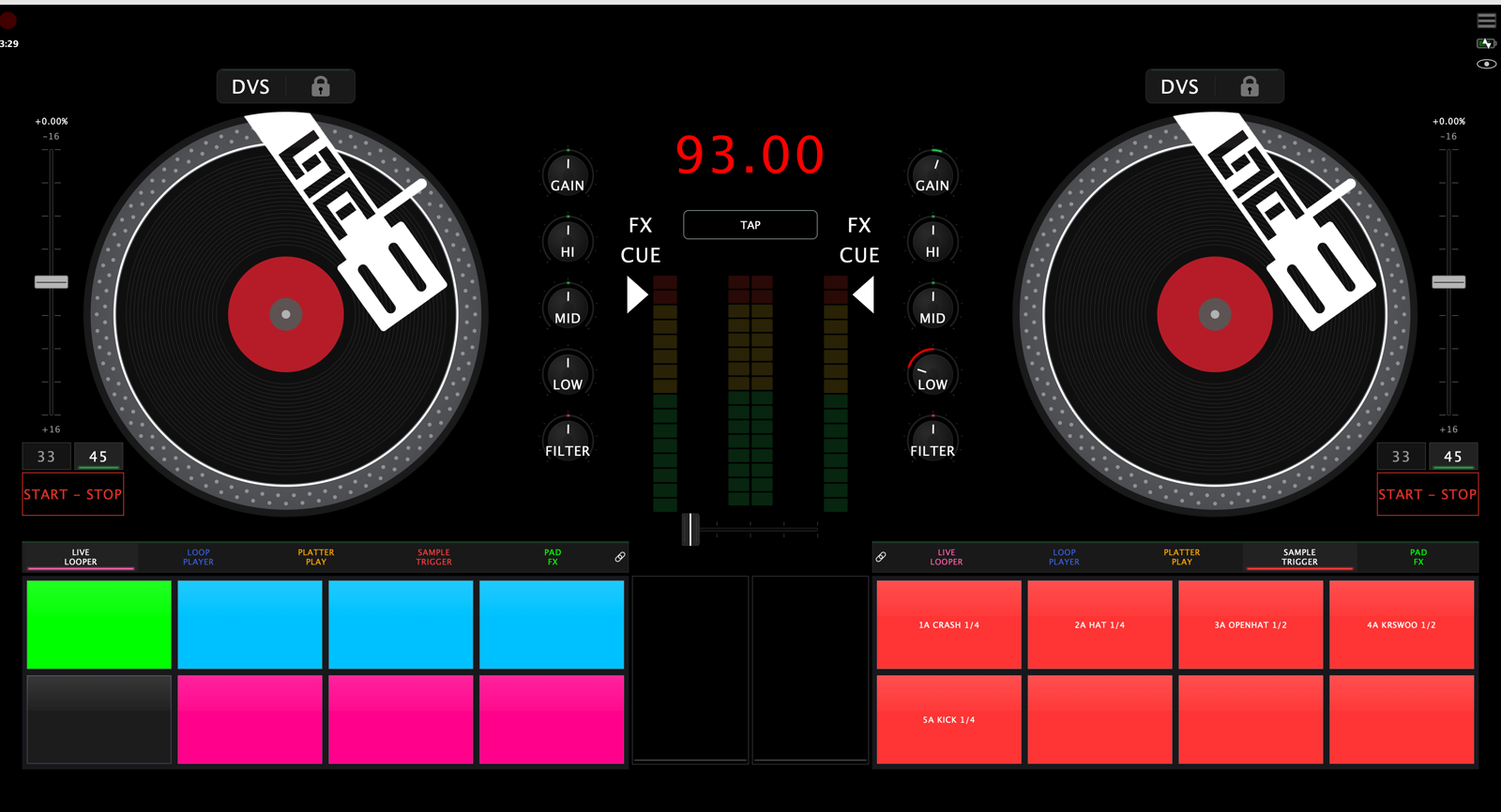
Everything at once: platters, mixer, waveform lanes, pads, crossfader. This is the layout the screen tour describes, and nothing in it is compromised for space.
Mix
The gig view on a phone. The mixer section disappears, the waveform lanes grow down the centre, the pads drop to about half height, and the platters take the room that frees up.
Pads
Pad-focused. No lanes, no mixer, no deck bars — the pads grow tall and nearly fill the width. On a phone the platters go entirely and the loaded song's information fills the space above the pads instead. Loading is done from another view; this one is for playing.
DVS
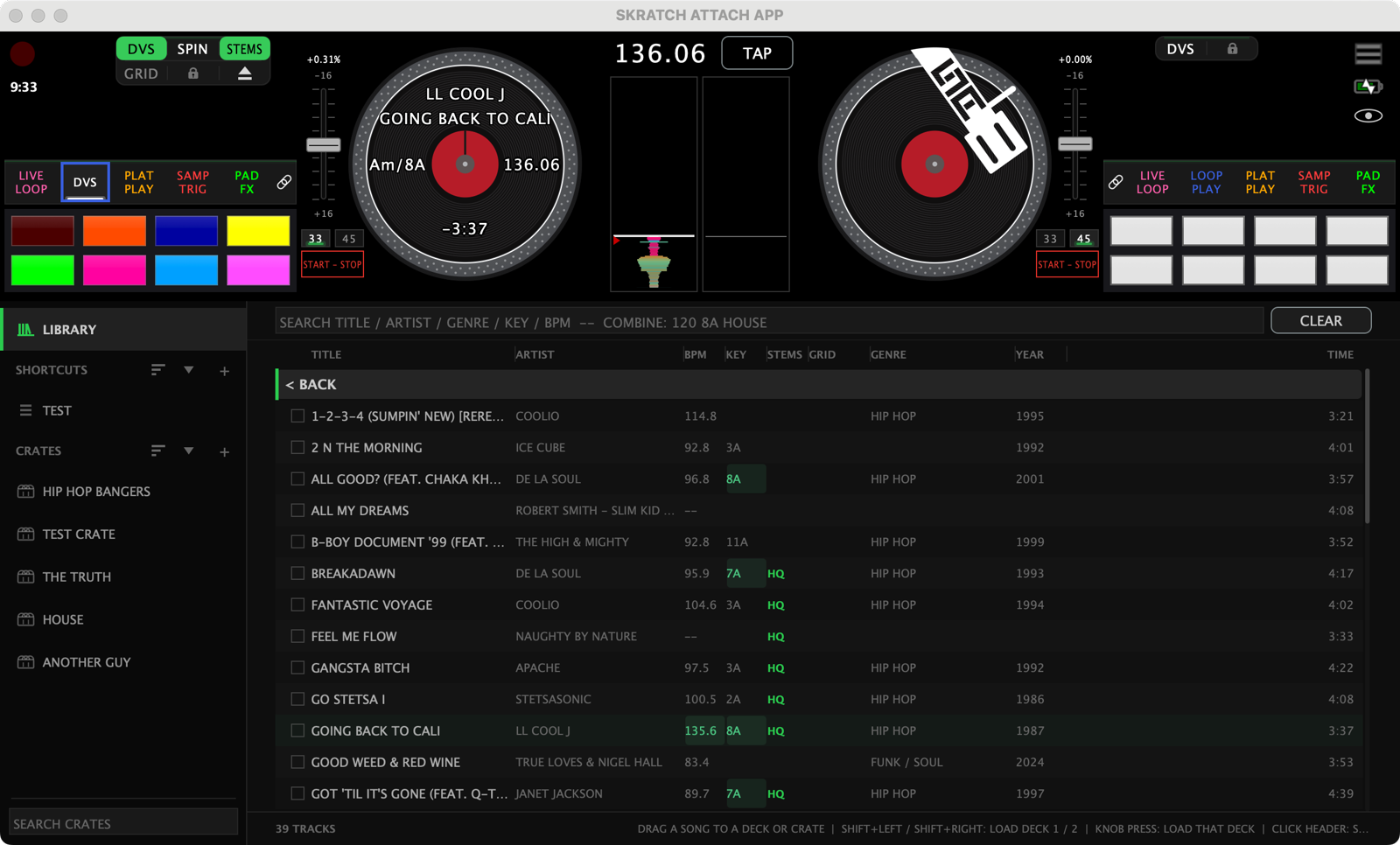
The desktop and iPad view for digital records: a band across the top — mini pads, platter, lanes, platter, mini pads — with the browser docked underneath, taking about two-thirds of the window. Search, find, drag onto a deck, without ever opening an overlay.
Choosing which views you get
Settings → Customize → Performance View:
- Default picks the view the app opens in.
- Rotation ticks which views the eye actually cycles through, so you can leave one out of the rotation and still reach it from the Default radio.
The last view you used comes back on the next launch.