DVS
Your control vinyl drives the audio — whether that audio is a scratch sound on a pad or a whole song. DVS is the secondary mode of Loop Player: with Loop Player active, press it again to enter DVS.
Two banks, and the way in decides which one you land on
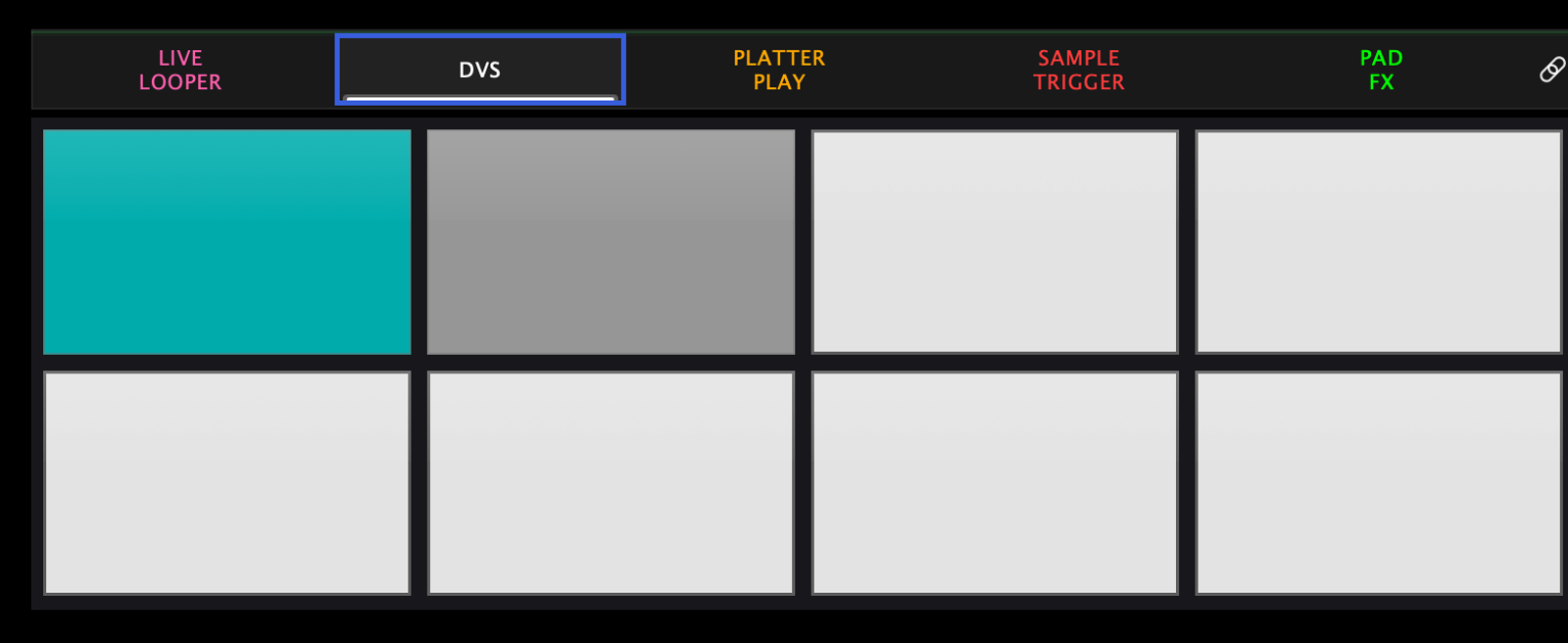
DVS has two banks, and they do different jobs:
| Bank | Holds | For |
|---|---|---|
| Bank 1 | Short scratch sounds, one per pad | Stabs, juggling, scratch practice |
| Bank 2 | A whole loaded song and its cue points | Playing and cutting full tracks |
Where you enter from decides which bank opens:
- From the pad-mode button — you land on bank 1, the scratch sounds.
- From the turntable mode bar — you go straight to bank 2, the song deck.
Switch between them any time with Parameter Right (bank up) — the same button the app presses for you when you come in from the turntable bar.
This is the one thing to know about DVS. If you entered from the pad mode button and wondered where your song went, you're on bank 1 — press Parameter Right.
Bank 1 — scratch sounds on the pads
Tap a pad and that sound becomes the deck's audio, with its playback position driven 1:1 by your control vinyl — the record is the transport. Rock the record back and forth and you're scratching that sound exactly as if it were pressed on wax.
- Only one pad is active at a time — tapping a new pad switches the sound instantly, which is the point: juggle between stabs mid-scratch.
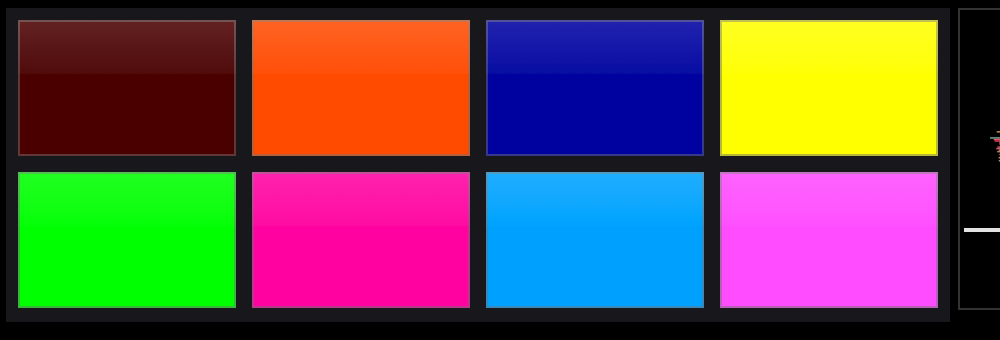
- Each pad has its own gain and colour. Pads flash white on press.
- Sounds live in the SkratchPads folder inside the app's own Documents
folder (
Documents/Skratch Attach/SkratchPadson Mac,Documents/SkratchPadson iOS) — it keeps the older name.
Bank 2 — the song, and its cue points
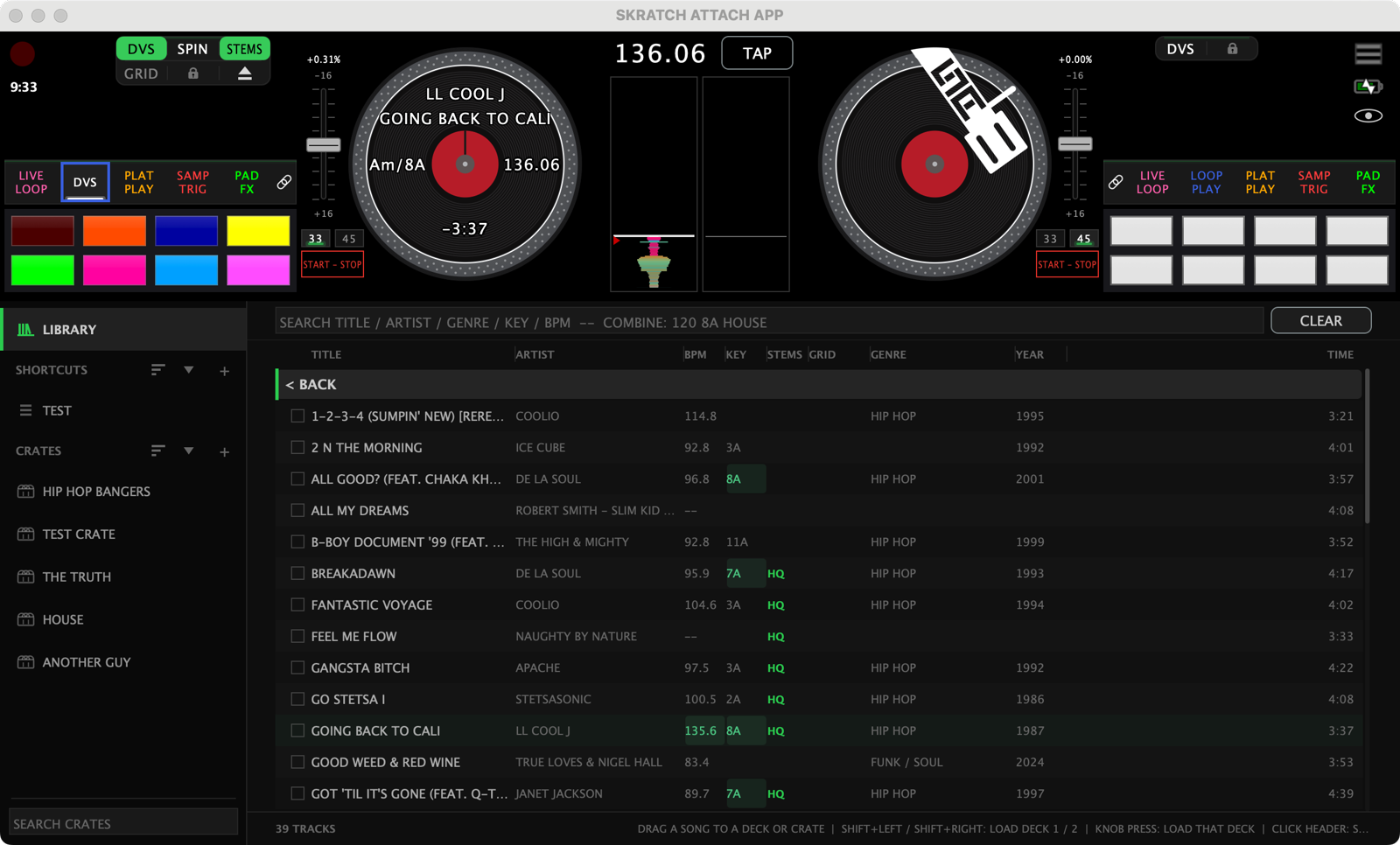
Load a track through Quick Load and bank 2 fills itself with that track's cue points, read from the file's own tags — then bank 2 activates automatically. A prepared file brings its cue routine with it, no setup.
This is the bank the turntable mode bar drops you into, because it's the one most people mean by "DVS": a real record on the platter, a digital song under the needle.
Loading tracks: Quick Load
Quick Load hands a full track to DVS — the fastest way from "found it in the library" to "scratching it on vinyl." Open the browser with a long-press on the platter centre while DVS is active, or from the Universal Browser.
Requirements
What DVS needs depends on how you're driving it:
- On the Rane One's control disc — nothing. Put the deck in DVS, set its mode chip to SPIN, and play. See DVS control modes.
- On timecode records — the record has to be set up and tracking first. See DVS setup & troubleshooting.
- On neither — INT plays the deck on its own.