
Customize
Settings → Customize is where the app is made yours. One page, in cards, top to bottom.
Display
| Setting | What it does |
|---|---|
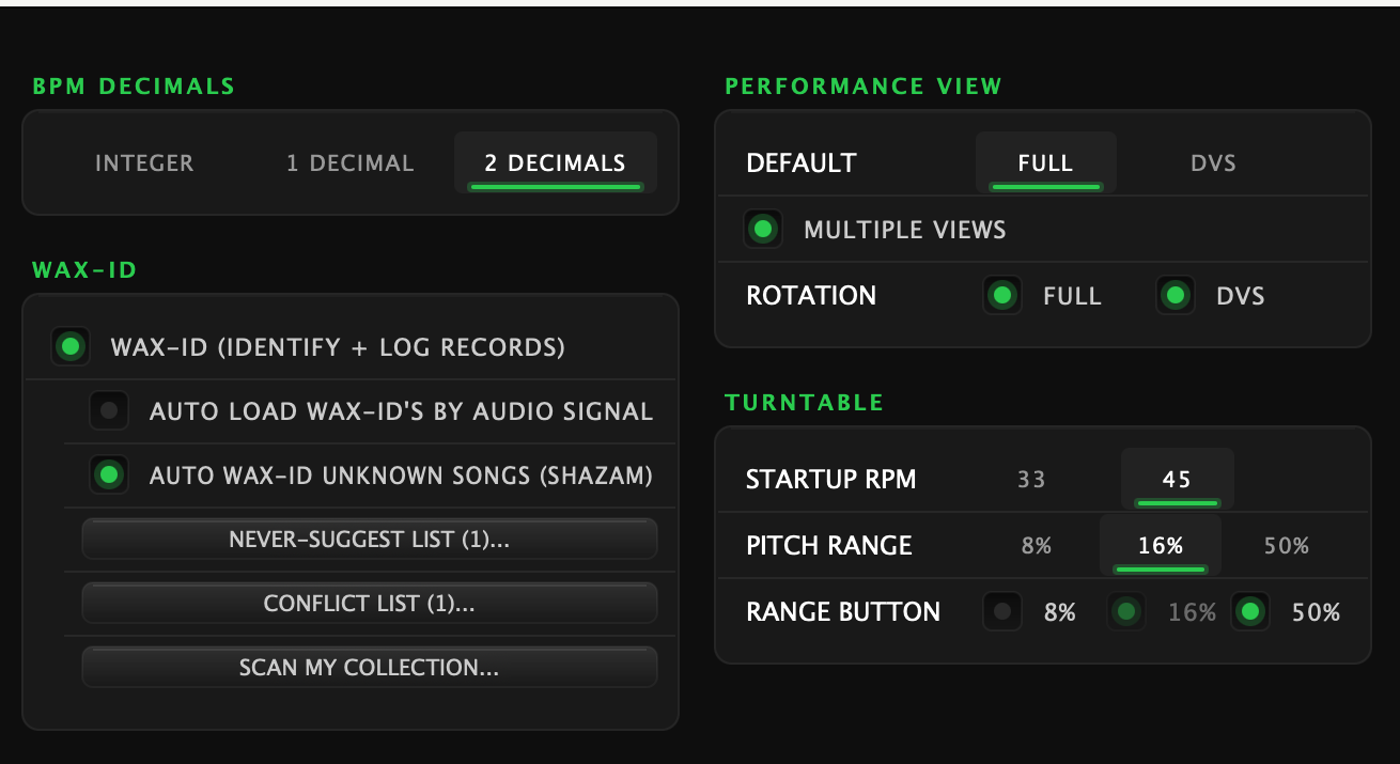
| BPM Decimals | How many decimal places the big BPM readout shows |
| Pitch 2 Decimal Places | The same idea for the pitch percentage |
| Show Clock | The time of day, in the top-right corner beside the battery |
| Hide Mode Bar | Takes the pad mode bars off the screen. The bar is the default; leave this alone and you keep it |
| Auto-Hide Track Browser | See Browser, below |
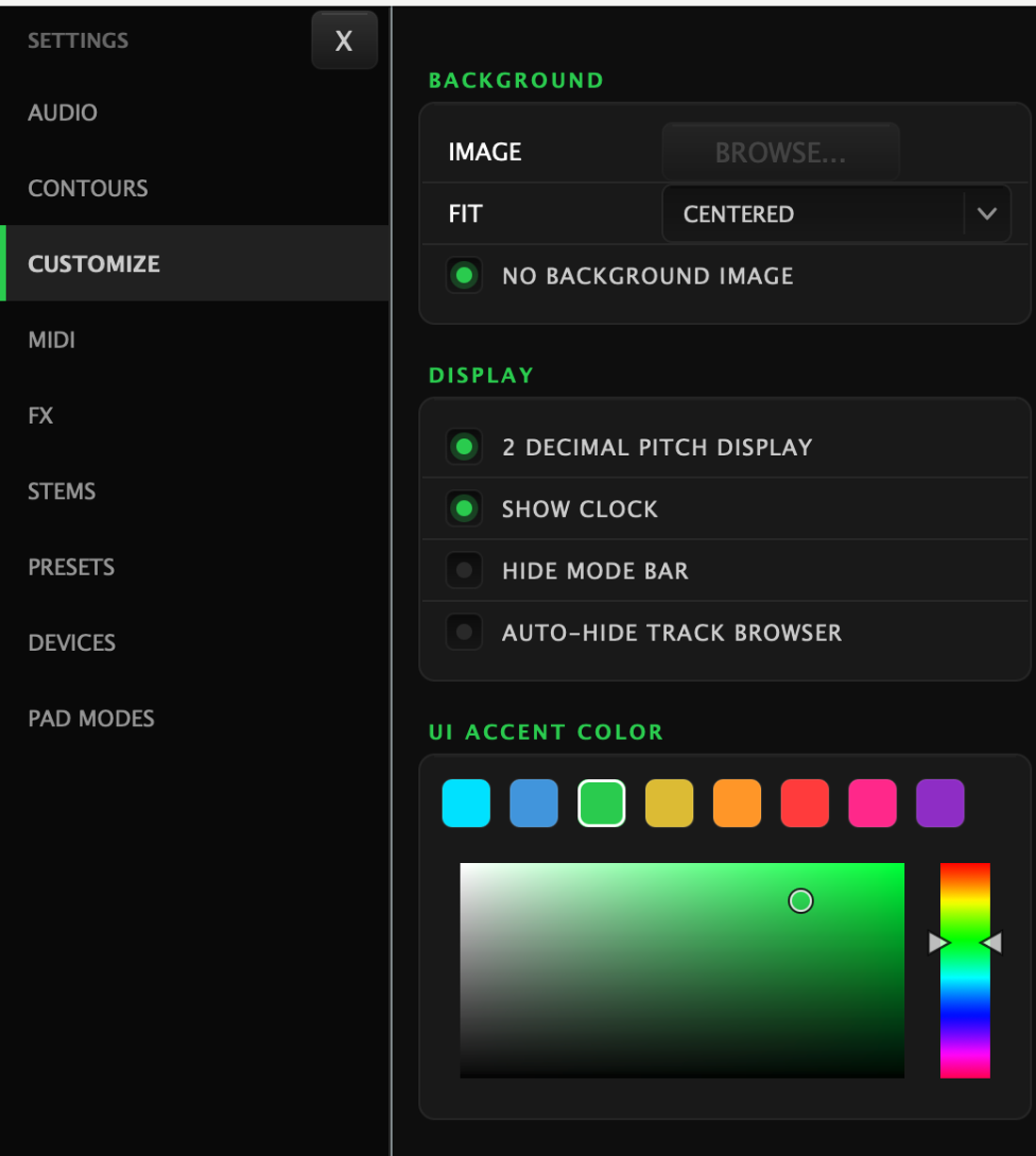
UI accent colour
The accent is the colour the app uses for everything it wants you to notice: lit chips, headers, selections, highlights.
Pick one of the eight presets — Aqua · Sky · Green · Yellow · Orange · Red · Pink · Purple — or open the colour wheel underneath for anything else. The change is live: the app recolours as you drag.
Background
Load an image as the app's background and choose how it fits. There is also a plain no background image switch to go back to black.
Performance View
Default picks the view the app opens in, and Rotation ticks which views the eye cycles. See Views and the eye.
Turntable
Deck defaults, and they are not DVS-only — they apply to whatever the deck is doing:
| Setting | What it does |
|---|---|
| Startup RPM | Whether decks come up at 33 or 45 |
| Pitch range | The range a deck starts on |
| Range button | Which ranges the RANGE button cycles through — drop 8% or 50% if you never reach for them. Your default is always in the cycle |
Under Performance View, Multiple Views is the master switch for having more than one view at all.
Browser
Auto-Hide Track Browser dismisses the browser once you've loaded, putting you straight back on the decks. It doesn't apply while the browser is docked in the DVS view.
Wax-ID
The master switch and its two sub-switches, plus NEVER-SUGGEST LIST (the reversible face of NEVER), CONFLICT LIST and SCAN MY COLLECTION. See Wax-ID.
Library Sync
Keeps your Wax-ID records in step across your devices.
- On the first device, press GET LINK CODE. It shows a six-digit code, good for ten minutes.
- On the second, type the code in and press JOIN.
After that it's automatic: save or edit a record on one device and the other picks it up. Answers appear as plain status text on the card — offline just means it tries again later, never a dialog in the middle of a set.