
Record analysis & grids
This is the workshop behind Wax-ID: capturing a record, laying a beat grid across it, fixing the grid where the song drifts, and saving the result.
The music stays on your vinyl. What gets stored is the tempo, the grid and the identity — and, if you want it, a FLAC archive of the take.
⚡ Most records never need this page. Run the guided log, let AUTO GRID do its work, and save. Everything below is for the ones that argue.
Getting here
Long-press the platter centre on an analog deck to open the WAX-ID LIBRARY for that deck, then + CREATE NEW WAX-ID. Only the X button (or Escape) closes these overlays — stray taps outside the panel are ignored on purpose.
An existing record's GRID chip reopens the same editor against that record's archived take.
1. Capture
- Set the pitch fader to zero — the view guards this, so the stored tempo is the record's natural one.
- Press START, then drop the record in on the 1.
- Tap along while it plays. Those taps become the tempo the grid is built from, and the status line tells you how the run is going.
- Let the song play out — the capture stops itself in the silence at the end — or press STOP whenever you have enough.
RELOAD LAST CAPTURE brings back your previous capture if you closed the view or want another pass at the grid.

2. AUTO GRID
After a guided take the app grids the capture off your taps immediately. You'll land on the review screen with the grid already laid.
If it needs a nudge, AUTO GRID is the button — it lights up as soon as a tempo reference exists. Without one it says so: "AUTO GRID NEEDS A TEMPO — TAP OR TYPE IT".
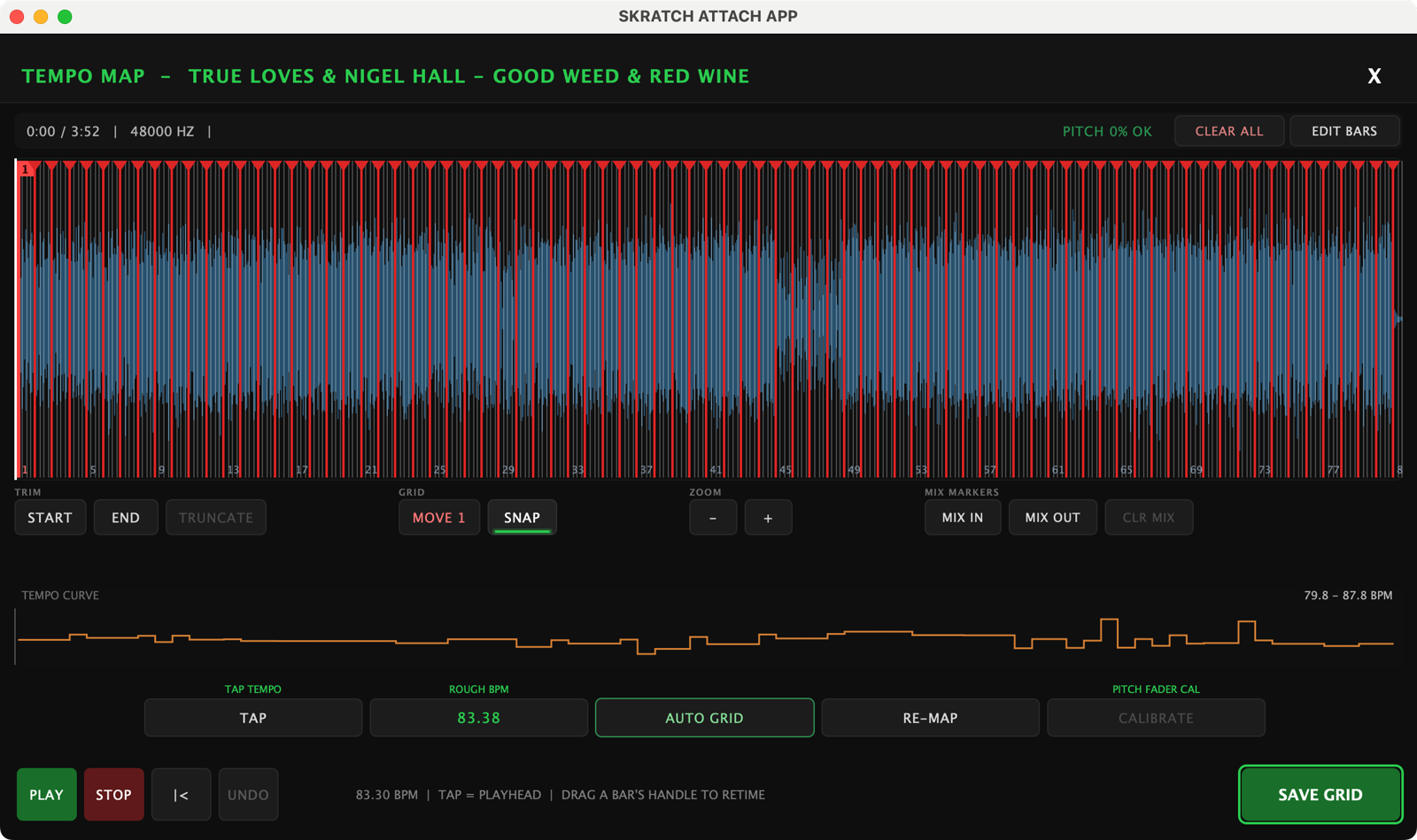
This is the review screen, the TEMPO MAP, opened on a saved record's archived take: every bar line laid across the waveform, the bar numbers along the bottom, and the TEMPO CURVE lane underneath showing the per-bar BPM.
3. When the record wanders
Some records simply don't hold one tempo. The app says so rather than pretending — "THE TEMPO WANDERS", "ONE FIXED GRID CANNOT FIT THIS SONG" — and points you at DRIFT GRID.
Drift Grid is guided too: it plays four spots through the song and asks you to tap from the 1 at each one. Those four hand-placed anchors pull the grid onto the record's own drifting tempo, and the result is checked by ear.
4. The manual path
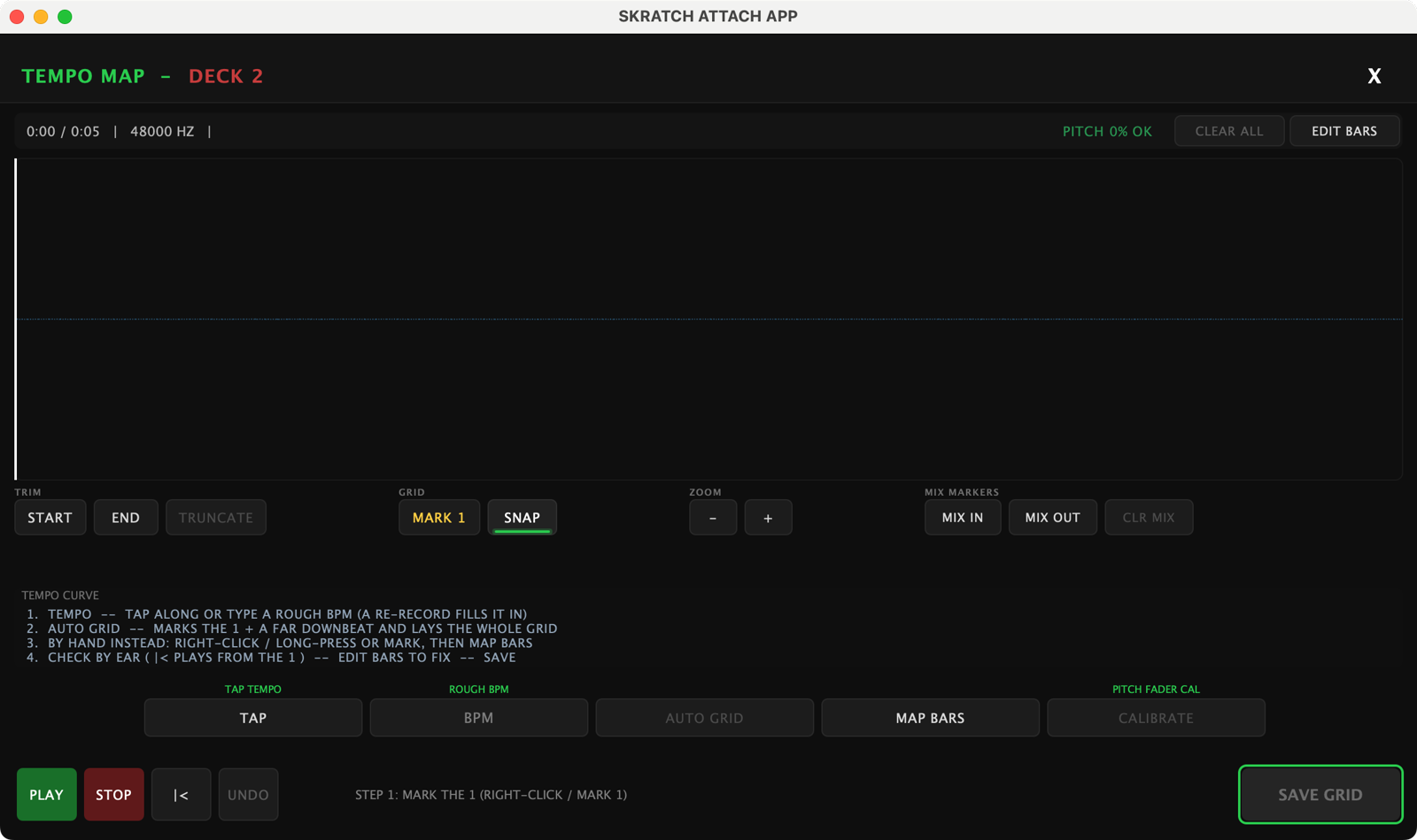
When you'd rather place everything yourself, the view spells out three steps:
- STEP 1: MARK THE 1 — click exactly on the first downbeat (right-click drops a mark at the playhead), then mark the last bar's downbeat too. Zoom with +/− to get it sample-tight.
- STEP 2: TAP THE TEMPO, OR TYPE THE BPM — close is good enough, it's only a hint.
- STEP 3: PRESS MAP BARS — the grid lays across the whole song, anchored on your marks. Your marks fix the endpoints; the math and the audio settle the bars in between.
Check by ear as you go: |< plays from the 1, or click anywhere on the waveform to audition from that point. The TEMPO CURVE lane underneath shows the per-bar BPM, so a warped song is visible at a glance.
5. Fixing and trimming
- EDIT BARS drags individual bar lines where the song actually drifts. UNDO steps back, CLEAR ALL starts the review over, RE-MAP re-lays the grid after changes.
- LOCK THIS BAR pins a bar you've got right so a re-map can't move it.
- SET SONG START HERE / SET SONG END HERE and TRUNCATE crop the capture and its grid down to the song itself.
- MIX IN / MIX OUT place your mix markers, CLR MIX clears them. A record with markers set shows MIX in the library. They are a taste thing, and they never affect the record's star.
6. Save
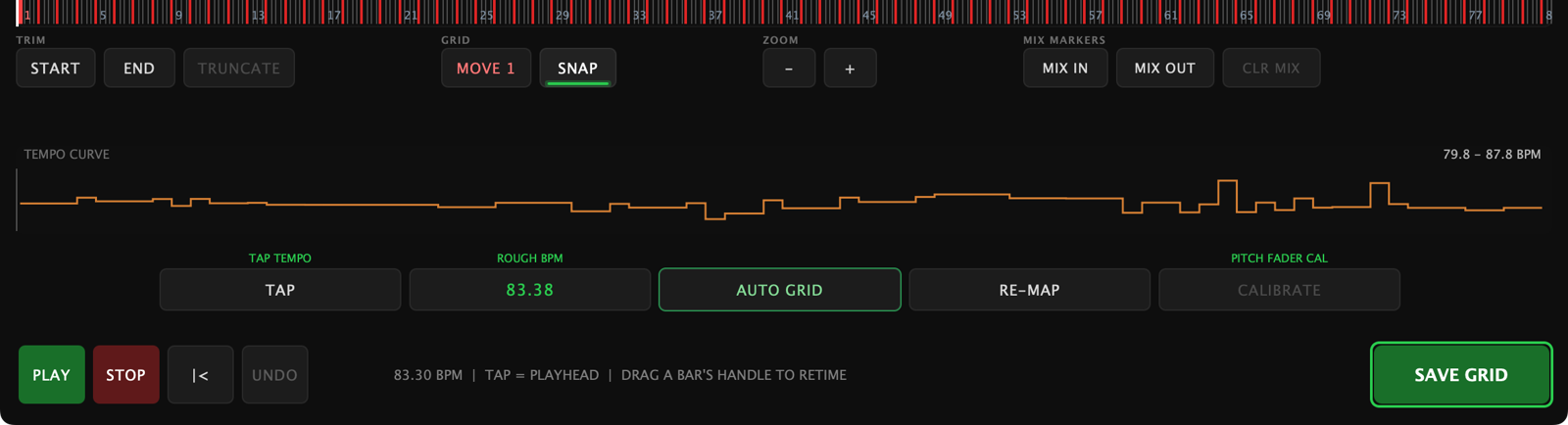
SAVE GRID writes the record — artist, track, BPM, capture speed, the full grid, and the take. On a fresh capture the save offers the archive choice (SAVE + FLAC ARCHIVE / SAVE GRID ONLY); reopening an old record to edit its grid leaves its archive alone.
From then on that record recalls with its complete map: straight songs get a straight grid, warped ones follow their own curve.
Recalling a saved tempo
Tap a row in the WAX-ID LIBRARY and the overlay closes with that tempo locked into Follow for that deck:
- If the metronome is already running, it re-locks at the saved tempo immediately.
- If it's off, long-press TAP to arm the metronome, then tap once on the record's "1" — the click starts right there at the saved tempo, with zero taps of counting.
The recalled tempo is adjusted for your current platter speed (33 vs 45) and then rides your pitch fader — push the fader and the grid moves with the record, exactly as it should.
Turning the metronome off ejects any recalled tempo records — recall again next time you engage it.