
Metronome & tap tempo
The metronome is the heartbeat of Skratch Attach: loop recording, loop playback sync, and Follow Mode all key off it. There is no separate "sync" switch — if the click is running, everything follows it.
Turning it on and off
Two ways in, and both do the same thing: the metronome arms first — silent and ready — and your next tap starts the click on that exact beat.
On screen: long-press the TAP button, about half a second.
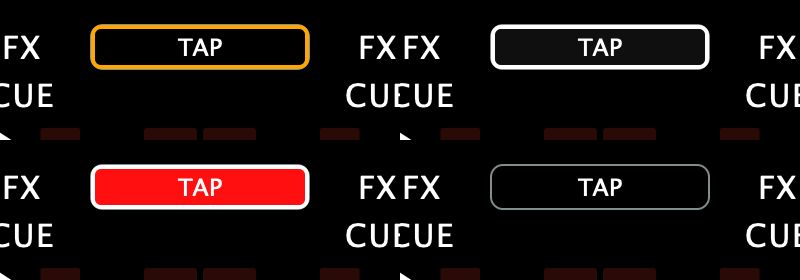
- The button gets an amber outline — armed.
- Your next tap starts the click on that beat — tap on the "1" and the click drops in on the one.
- Long-press again to turn it off.
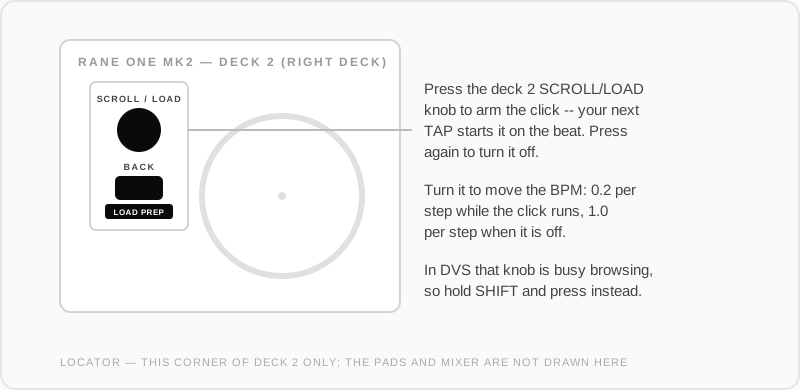
On the hardware: press the right deck's browse knob (deck 2, printed SCROLL / LOAD). Press again to turn it off.
While either deck is in DVS, that knob is busy browsing tracks — hold SHIFT and press it instead.
While running, the TAP button flashes red on the "1" and orange on beats 2–4.
If you've recalled a record from the Wax-ID Library, that first tap starts the click at the saved BPM — no counting taps needed.
The same knob sets the tempo
Turn the right deck's SCROLL / LOAD knob and it moves the BPM. How far per step depends on whether the click is already going:
| Metronome | A step moves the BPM by |
|---|---|
| Running | 0.2 — fine, for tuning against a record by ear |
| Off | 1.0 — coarse, for getting close quickly |
The range is 40–200 BPM. In DVS the knob scrolls the browser instead, so the tempo stays where you left it.
Where you hear it
Never the master mix — the click is for you, not the crowd. How it reaches your headphones is completely different on the two decks.
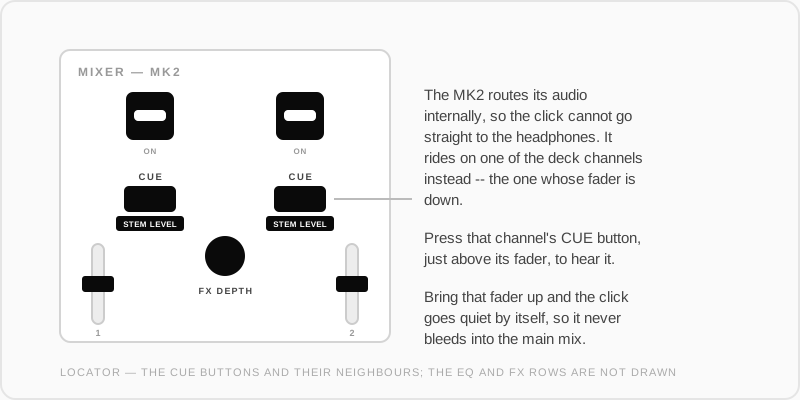
The MK2 routes its audio internally, so the app cannot send the click straight to the headphone output the way the MK1 does. The way around it: the app carries the click on one of the deck channels — the one whose fader is down — and you press that channel's CUE button to hear it.
So the click is not silent-but-broken if you can't hear it; you probably just haven't cued the channel it's riding on.
Because that signal is pre-fader, the click goes silent by itself if the routed channel's fader comes up — otherwise it would bleed straight into what the crowd hears. It keeps ticking visually and comes right back when the fader drops.
You choose which channel carries it in Settings → Audio:
- Metro Route — Auto (Least Active) lets the app follow the quieter deck for you, or pin it to Channel 1 or Channel 2
- Metro Gain — click volume, −6 to +6 dB
Tap tempo
Tap the TAP button (on screen, or the hardware button printed TAP) on the beat to set the BPM. The tempo tightens as you keep tapping — the app averages your taps and quietly discards the odd mis-tap. Pause for a couple of seconds and the next tap starts a fresh tempo.
With the metronome running, a full five-tap count (1-2-3-4-1) does more than set a number — it locks the grid to a playing record. That's Follow Mode.
FX timing and Auto BPM
Both used to sit in a row of chips under the BPM display. Those chips were removed to give the screen back to the decks — the features stayed.
FX beat divisions are set from the hardware and from the settings pages:
- Your controller's FX buttons step the Master FX division up and down
- The Pad FX division is set the same way, and on the pad-mode strip
- Both are shown on the FX and Pad FX settings pages, and mirrored to your mixer's own display where the hardware has one
Auto BPM reads the tempo from the live audio instead of from your taps. Hold the hardware TAP button for three seconds to toggle it. TAP flashes to tell you which way it went — accent colour for on, orange for off.