
← App GuideRane OneSwitch device
MIDI & mapping
Settings → MIDI, in two tabs.
Setup
Which MIDI ports the app is talking to, and what any other connected gear is for.
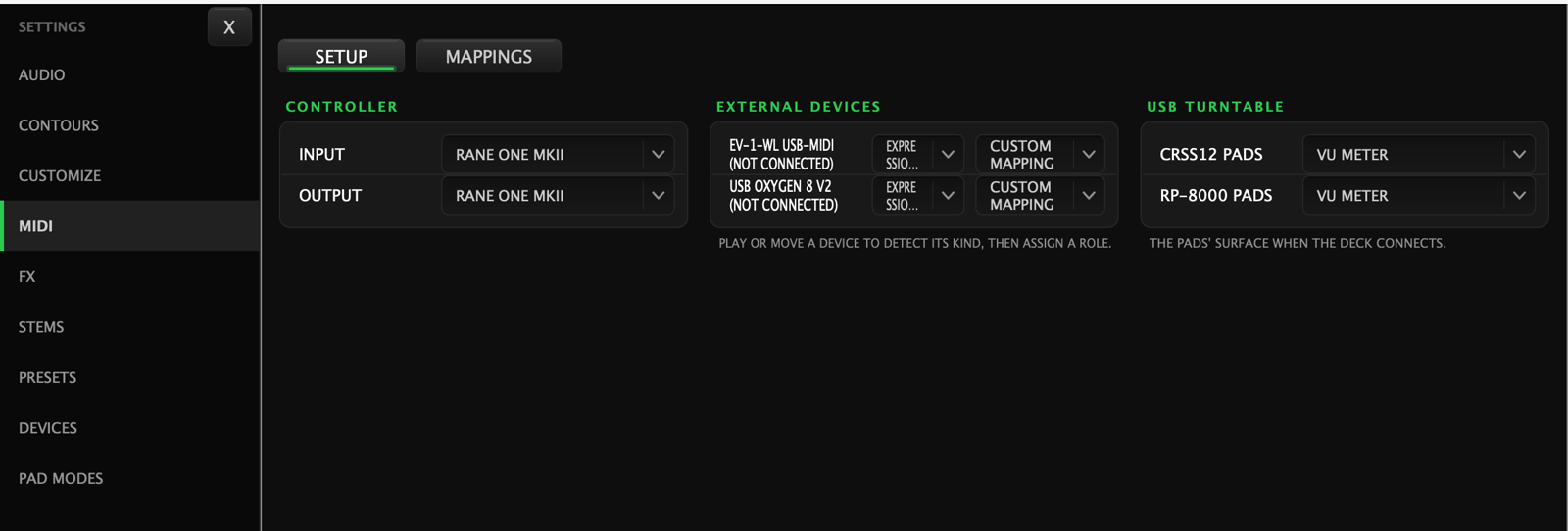
- Controller — the MIDI in and out for your DJ device.
- External devices — anything else plugged in. Each gets a role: an expression pedal, or custom mapping to control the app yourself. Play or move a control to make a device identify itself.
- USB turntable — what a connected turntable's pad surface shows.
Mappings
The custom-mapping list: every target you can drive from your own controller, per deck, plus the mixer.
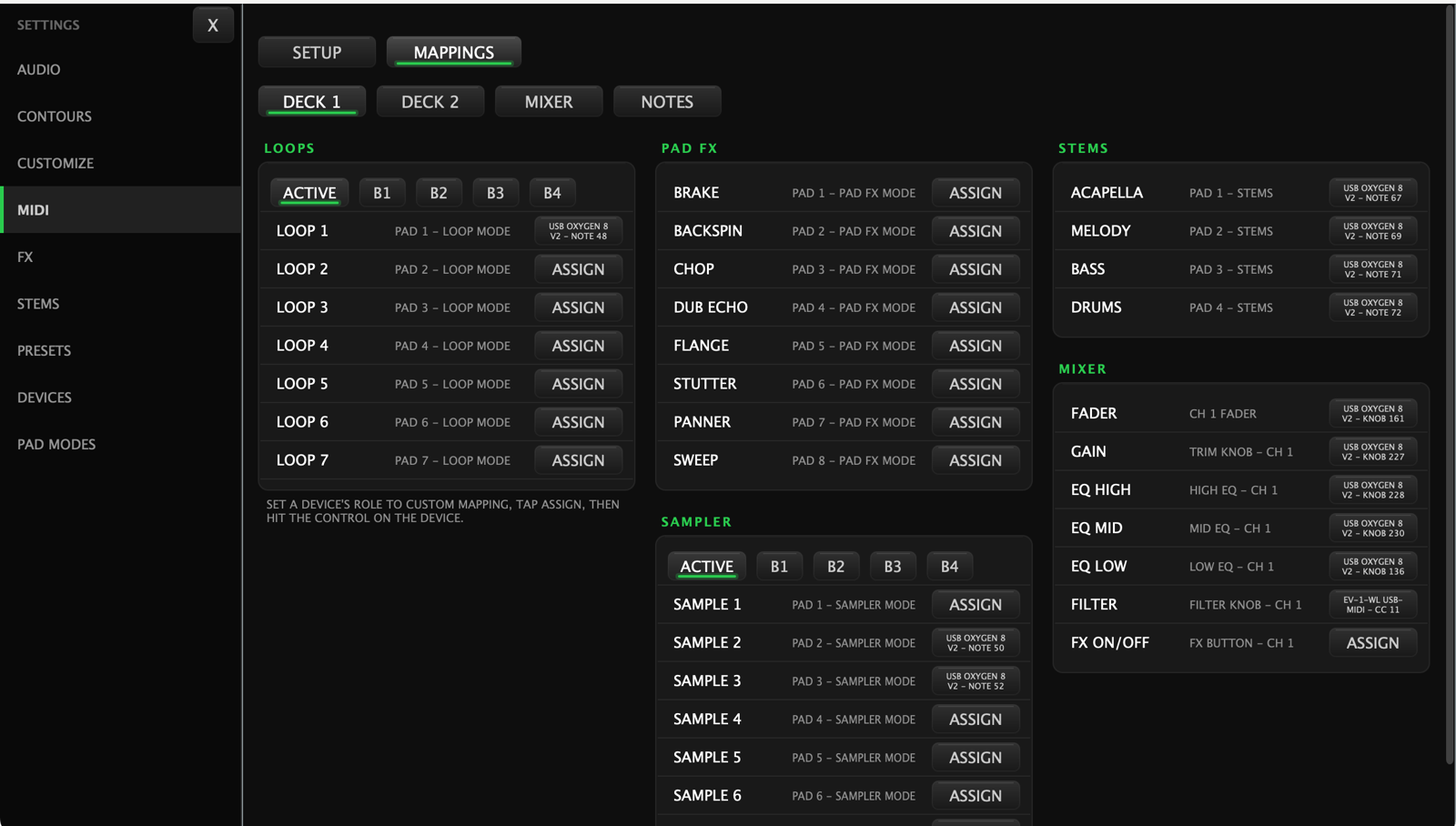
DECK 1 · DECK 2 · MIXER · NOTES across the top, then a card per family: Loops, Pad FX, Sampler, Stems, Mixer.
To map something:
Set a device's role to custom mapping, tap ASSIGN, then hit the control on the device.
An assigned row shows what it's bound to instead of the ASSIGN button.
← All guides2026-09 UI